QR Code Asset Labels: A Practical Setup Guide

Which of the identical monitors beside reception belongs to the record marked "Office display"? A readable tag can answer that question without comparing invoices or guessing from purchase dates. Useful asset labels connect a physical item to one specific register record, giving the person standing beside it a reliable starting point.
A QR code adds a shortcut: scan the tag to open the corresponding record. The real control still depends on accurate identification, suitable printing, and someone checking what is actually present. This guide covers a practical workflow for SME controllers and bookkeepers, from preparing the register to resolving exceptions after a physical check.
1. Understand what asset labels identify
Give each item its own asset number, the reference assigned within the register. Keep the manufacturer's serial number separately: it helps distinguish similar equipment and corroborate the tag, but it serves a different purpose. Two laptops of the same model need separate records and separate identifiers. A product description alone cannot establish which laptop was inspected.
Decide the unit of identification before ordering tags. A desktop computer, its monitor, and its docking station might be separate records, or the accounting register might contain a grouped acquisition. Do not attach the same supposedly individual identifier to several independent items without documenting the grouping. If physical tracking needs more detail than the accounting register, maintain a mapping between the individual items and the financial record.
A QR code is a two-dimensional symbol that encodes data. In the workflow described here, that data is the asset detail URL. The printed symbol remains the same when someone updates the destination record; it does not contain a live copy of the asset's location, cost, or condition. Opening a record and confirming its contents are separate actions.
Distinguish internal identification from supply-chain standards. GS1 describes the Global Individual Asset Identifier as an identification key for individual assets such as trucks and trailers. An internally assigned number and a QR link are not automatically a GS1 identifier. Use the identification scheme required by the business or trading relationship rather than assuming every tag needs the same standard.
2. Prepare the register and choose label fields
Prepare a clean record for each item before producing its label, and print enough information to identify it when scanning is unavailable.
Start with the fixed asset register setup: asset number, clear name, category, serial number where available, location, and responsible person. Resolve duplicates before printing. For imported records, check that a repeated description does not hide different items and that two entries have not been created for the same machine. Labeling a duplicate record makes the error harder to unwind later.
Choose visible fields with the placement in mind. An asset number and short name provide a manual fallback if a camera cannot decode the symbol. A company name can help distinguish ownership in shared premises. Location and department offer context, but they can become stale after a move; decide whether those fields belong on a long-lived tag or only in the register.
Check confidentiality as well as readability. The current single-label layout includes acquisition date and cost alongside operational details. That can be useful inside a controlled equipment room and unsuitable on a laptop used in public. Inspect the actual print preview before choosing a layout. The bulk layout has a smaller field set, so single and bulk printing should not be treated as interchangeable designs.
Keep a durable destination for the QR link. Use the intended production address, open the result with an authorized account, and check the company and asset number. A code generated against a development server will retain that development address after printing. Changing a description does not change the encoded URL, but replacing the underlying record can leave an old tag pointing to an obsolete destination.
3. Print and test the labels
Print a small trial batch, confirm the destination and physical readability, and only then produce the remaining labels.
From an asset's detail page, choose Print Label to open its individual label. For several records, open the asset list, select the relevant checkboxes, and choose Print Labels from the selection toolbar. Review the selected asset numbers before printing. The bulk output uses a two-column layout with label boxes specified as 3.5 by 2 inches; this is not a promise of alignment with every commercial sheet template.
(Minty Assets generates individual QR labels and bulk printable sheets from the asset register.)
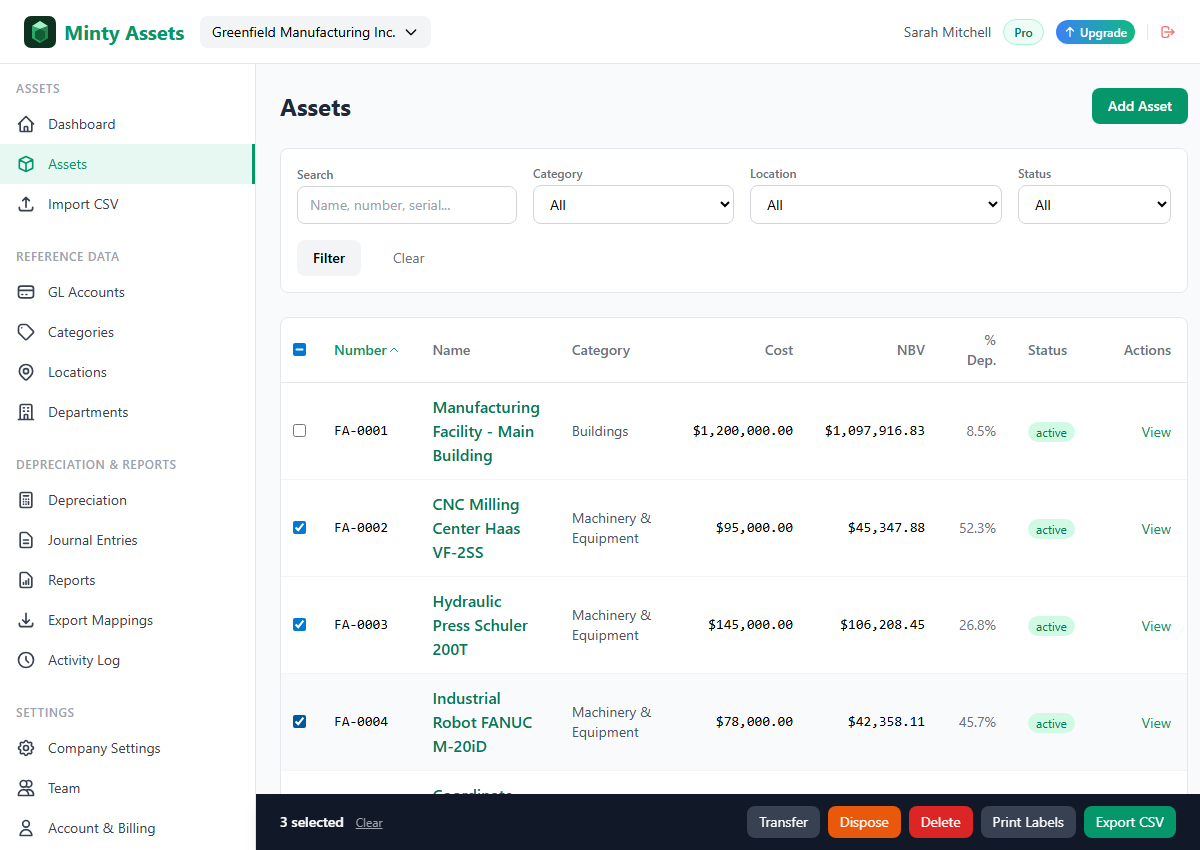
Use the browser's print preview to inspect scale, paper size, margins, and page breaks. Compare the output with the actual stock manufacturer's dimensions. Print on plain paper first and hold it against the blank sheet; a layout that looks aligned on screen can drift across a physical page. The screenshot above uses demonstration records, not the population in the worked verification example below.
Protect the quiet zone, the clear space around the QR symbol. DENSO WAVE specifies a four-module margin on every side; a module is one square unit in the symbol's grid. Keep text, borders, adjacent labels, and the edge of a cut outside that clear area. Check the finished print rather than relying only on a generator's canvas dimensions.
There is no single label size that guarantees a successful scan. Encoded content, symbol density, printing, lighting, and the reading device all affect the result. DENSO WAVE explains that error correction can restore some damaged data, with a trade-off between correction capability and data size. Its correction percentages concern codewords, not a guarantee that an equivalent percentage of any printed area can be removed. Replace damaged tags instead of relying on a damage allowance.
Test the actual applied label with the devices and lighting the team will use. Confirm that it decodes, opens the expected domain, and reaches the correct record after login. The asset pages require authenticated access and the appropriate company membership. Scanning does not bypass those controls, prove ownership, or automatically create an inspection result. Keep credentials out of the QR payload.
4. Verify assets and resolve exceptions
Physical verification compares observed equipment with register records and records the outcome, including discrepancies that need follow-up.
Create a dated worklist for the location and define what counts as a match: asset number, description, serial number where available, and observed location. Record the check date, checker, result, and evidence reference. Set aside time to investigate unclear results; marking every unlocated item as disposed merely to finish the list would replace an operational question with an unsupported accounting change.
Use both directions of checking. From the register, locate the listed equipment and compare its identifying details. While walking the area, also identify equipment that does not appear on the worklist. Those two passes answer different questions. A tag on a shelf is not evidence that the tagged laptop is still present, and scanning the same item twice must not count as finding two assets.
Consider this illustrative exercise, not customer data or an audit sampling rule. A worklist contains 48 register records. The checker finds 43 items in their expected locations, locates another 3 elsewhere, and cannot locate 2. Those outcomes account for all 48 records. One additional unlisted item is found during the walk-through and is logged separately.
| Worklist outcome | Records | Follow-up |
|---|---|---|
| Found at expected location | 43 | Retain identification and check evidence |
| Found elsewhere | 3 | Confirm movement and update location if supported |
| Not located | 2 | Investigate custody, transfers, repairs, or disposal evidence |
| Total register worklist | 48 | 46 located, 2 unresolved |
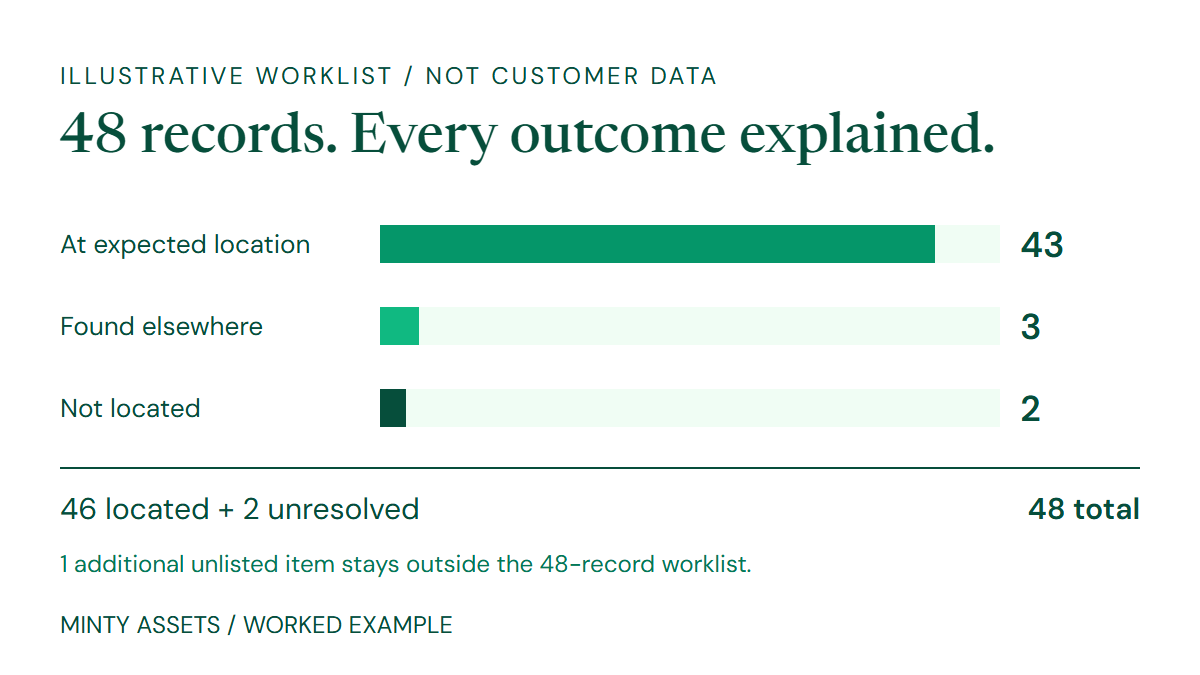
The 46 located items equal 43 plus 3. The 2 unlocated records remain unresolved, and the additional unlisted item is a separate completeness exception. If each observed item is distinct, the checker has seen 47 physical items: 46 linked to the worklist and 1 awaiting identification. Do not add the unlisted item to the worklist total and claim that all listed records have been verified.
Assign each exception an owner and a next action. A moved printer may need a location correction; an unlisted machine may belong to a contractor, duplicate an existing record, or require investigation of an omitted acquisition. A missing item needs evidence before deciding on any disposal or other accounting treatment. Keep the original observation, the investigation, and the approved resolution distinct, as part of the broader year-end fixed asset checks.
5. Keep labels useful after changes
Maintain the link between the tag and the record through transfers, replacement labels, and eventual disposal.
After a move, update the register's location and responsible person through the appropriate workflow. Check any location printed on the tag and replace it if the old text would mislead the next checker. Retain the asset number when it is still the same physical item; a desk moving between rooms should not appear as a new acquisition because someone issued a new tag unnecessarily.
Control replacements. Verify the equipment using its serial number and supporting record before attaching a new label, then remove or invalidate the damaged or incorrect tag. When equipment is replaced, identify the new item separately. Do not transfer a readable label from a retired laptop to its replacement simply because both have the same model name.
A fully depreciated item can still need a physical identifier while it remains in use. Keep its record and tag aligned with its actual status, following the guidance on fully depreciated assets still in use. At disposal, retain the supporting history and follow the organization's process for removing internal identification and handling data-bearing equipment.
Assign ownership of the routine: who issues tags, updates locations, investigates missing equipment, and signs off exceptions. Keep the dated worklist or inspection evidence separately from ordinary record browsing. Asset labels support a repeatable identification process, but the documented observation and follow-up are what make the physical check useful to finance.
Frequently Asked Questions
Does scanning an asset label record a physical verification?
Scanning opens the linked record. It does not automatically save an inspection result; record the observation, checker, date, and follow-up separately.
Do QR asset labels bypass login?
No. A reader can decode the URL, but opening the asset record requires authenticated access and the appropriate company membership.
Do I need a new QR code when an asset changes location?
The existing QR code still points to the same asset record if its URL is unchanged. Update the register location and replace any printed location text that has become misleading.
How should unlisted equipment be counted during verification?
Record unlisted equipment as a separate completeness exception. In the illustrative 48-record worklist, 43 items at the expected location, 3 elsewhere, and 2 not located account for all 48 records; the additional unlisted item is outside that total.
Ready to automate your asset register?
Minty Assets handles depreciation, journal entries, and audit-ready reports. Free for up to 50 assets, no credit card required.
Start Free