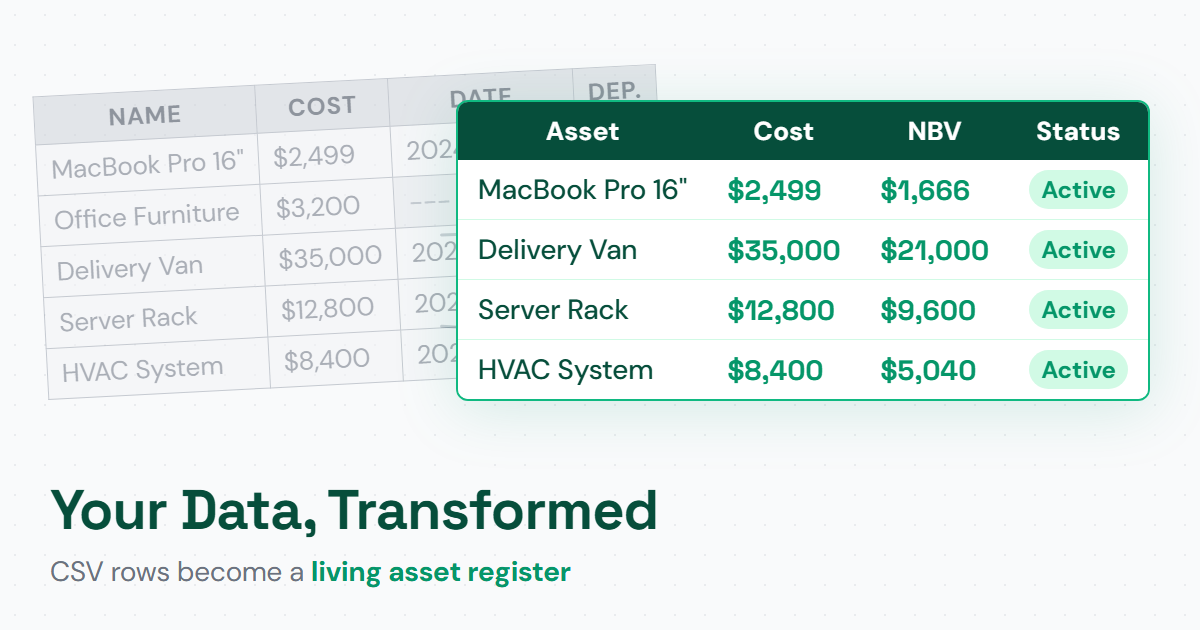
Migrating Your Fixed Asset Register from Excel

How many hours did you spend on your last roll-forward schedule? If the answer involves a sigh and a number greater than two, your Excel fixed asset register has probably reached its limits.
The good news: you don't need to start over. A CSV import can move your entire register - asset details, useful lives, and accumulated depreciation - into a dedicated system in under 30 minutes. The key is preparing your data correctly so net book values carry over exactly.
This guide covers the full migration process, from cleaning up your spreadsheet to verifying your numbers after import. If you haven't built a register yet, start with our guide on how to set up a fixed asset register from scratch.
When It's Time to Move Beyond Excel
A spreadsheet works fine for 10 or 20 assets. The cracks show when:
- Formulas break silently - someone deletes a row, and depreciation calculations downstream produce wrong numbers without any warning
- No audit trail - you can't tell who changed a salvage value last Tuesday or why
- Reports take hours - building a roll-forward or depreciation schedule means manual pivoting and formatting every period
- Collaboration is risky - two people editing the same file means version conflicts and lost changes
- Depreciation errors compound - a formula mistake in month one carries through every subsequent month, and you won't catch it until year-end
If three or more of these feel familiar, you're ready to migrate. The effort is a single afternoon of work that eliminates hours of recurring manual effort.
What You Need Before You Start
Before exporting anything, clean up your spreadsheet. Missing or inconsistent data in Excel becomes validation errors during import.
Required columns (the import will fail without these):
- Asset name
- Acquisition date
- Acquisition cost
Strongly recommended columns:
- Category (e.g., "Vehicles", "Computer Equipment")
- Useful life in months
- Depreciation method
- Residual/salvage value
- Accumulated depreciation - critical for mid-life assets
Cleanup checklist:
- Standardize date formats - pick one format (DD/MM/YYYY or MM/DD/YYYY) and apply it to every date column
- Remove merged cells, subtotal rows, and section headers embedded in data rows
- Ensure every asset has a cost greater than zero
- Check that accumulated depreciation never exceeds (cost minus residual value) for any asset
- Remove fully blank rows
One thing experienced controllers know: the cleanup is the real work. The actual import takes 5 minutes. Getting your data consistent takes the other 25.
Step 1: Export Your Spreadsheet to CSV
Save your Excel file as CSV (Comma Separated Values). A few things to watch for:
- UTF-8 encoding - if you have asset names with special characters (accents, currency symbols), save as "CSV UTF-8" to preserve them. Most import tools handle encoding conversion automatically, but starting with UTF-8 avoids surprises.
- Delimiter - commas are standard. If your data contains commas in asset names or descriptions, Excel will wrap those fields in quotes automatically.
- One sheet only - CSV exports the active sheet. Make sure your asset data is on the active sheet before saving.
Keep your original .xlsx file as a backup. You'll want it for comparison during verification.
Step 2: Map Your Columns
Upload your CSV to the import wizard, and you'll see a column mapping screen. Your spreadsheet headers appear on one side, and the register's database fields appear on the other.
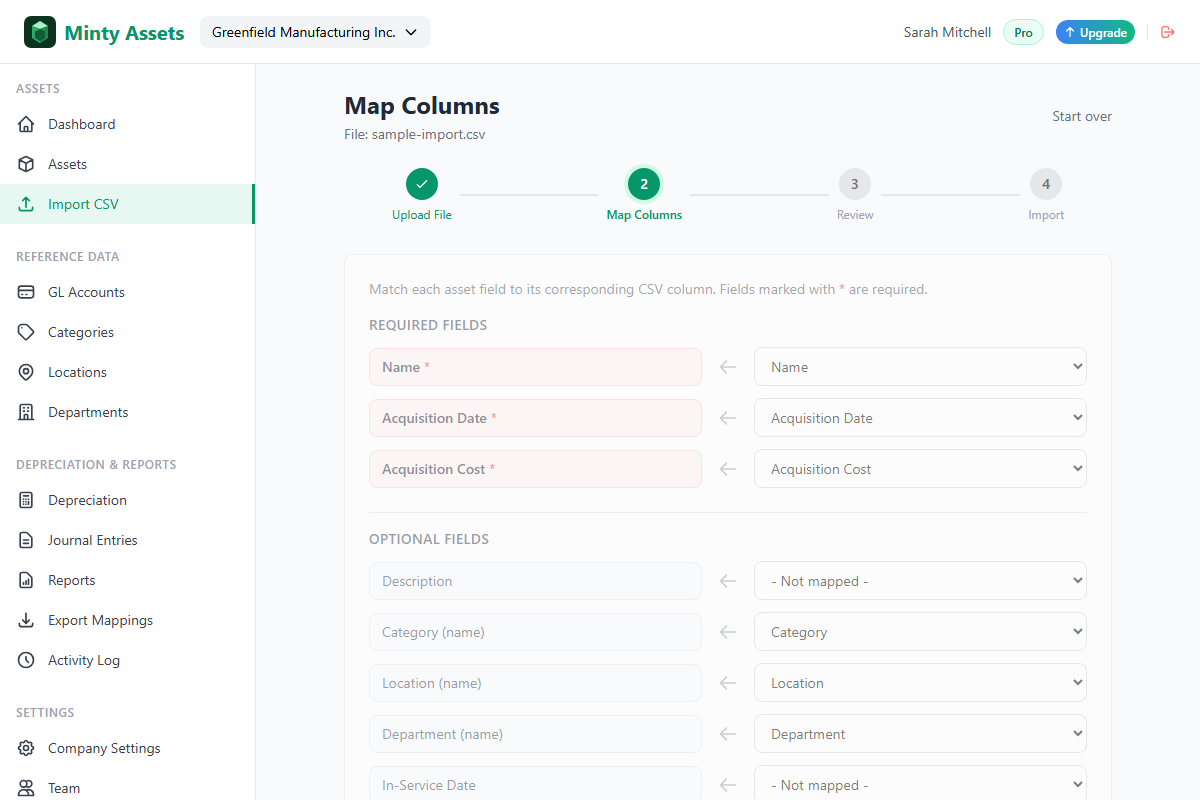
Good import tools auto-match common header names. "Purchase Date" maps to Acquisition Date. "Vendor" maps to Supplier. "Cost" maps to Acquisition Cost. You only need to manually map columns with unusual headers.
Three fields are required: Name, Acquisition Date, and Acquisition Cost. Everything else is optional but recommended. The more fields you map, the less manual cleanup you'll need after import.
Date format detection matters. Is "03/04/2024" March 4th or April 3rd? The best import tools detect whether your dates are US format (MM/DD/YYYY) or European format (DD/MM/YYYY) and let you confirm before proceeding. (Minty Assets auto-detects date formats and shows parsed dates in the preview so you can verify before committing.)
Step 3: Handle Accumulated Depreciation
This is the step that separates a clean migration from a messy one. If your assets have been depreciating for months or years, you need to carry that history forward.
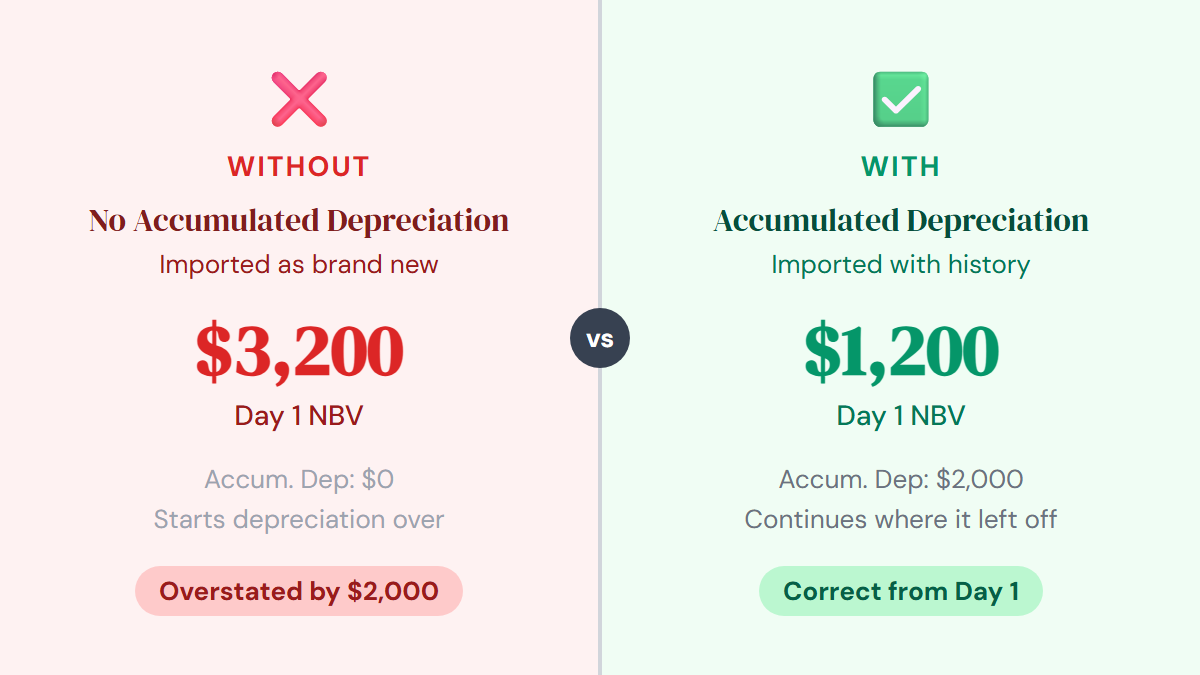
Without an accumulated depreciation column: The register treats every asset as brand new. A 3-year-old laptop that's 60% depreciated would start depreciating from its full cost again, producing a net book value that's far too high.
With an accumulated depreciation column: The register creates a migration entry that records the prior depreciation. The asset starts with the correct net book value from day one. No need to re-run historical depreciation periods.
Example:
| Field | Value |
|---|---|
| Asset | Dell Precision Workstation |
| Cost | $3,200 |
| Residual Value | $200 |
| Useful Life | 36 months |
| Accumulated Depreciation | $2,000 |
| Net Book Value after import | $1,200 |
The system calculates NBV as Cost minus Accumulated Depreciation ($3,200 - $2,000 = $1,200). Future depreciation continues from that point, not from zero.
One safeguard to know about: accumulated depreciation values are automatically capped at the depreciable amount (cost minus residual value). If your spreadsheet has an asset where accumulated depreciation exceeds that cap - a data entry error from the old system - the import catches it rather than creating an impossible negative book value.
Step 4: Preview, Fix, and Import
Before any data touches your register, the preview step validates every row and shows you what will happen.
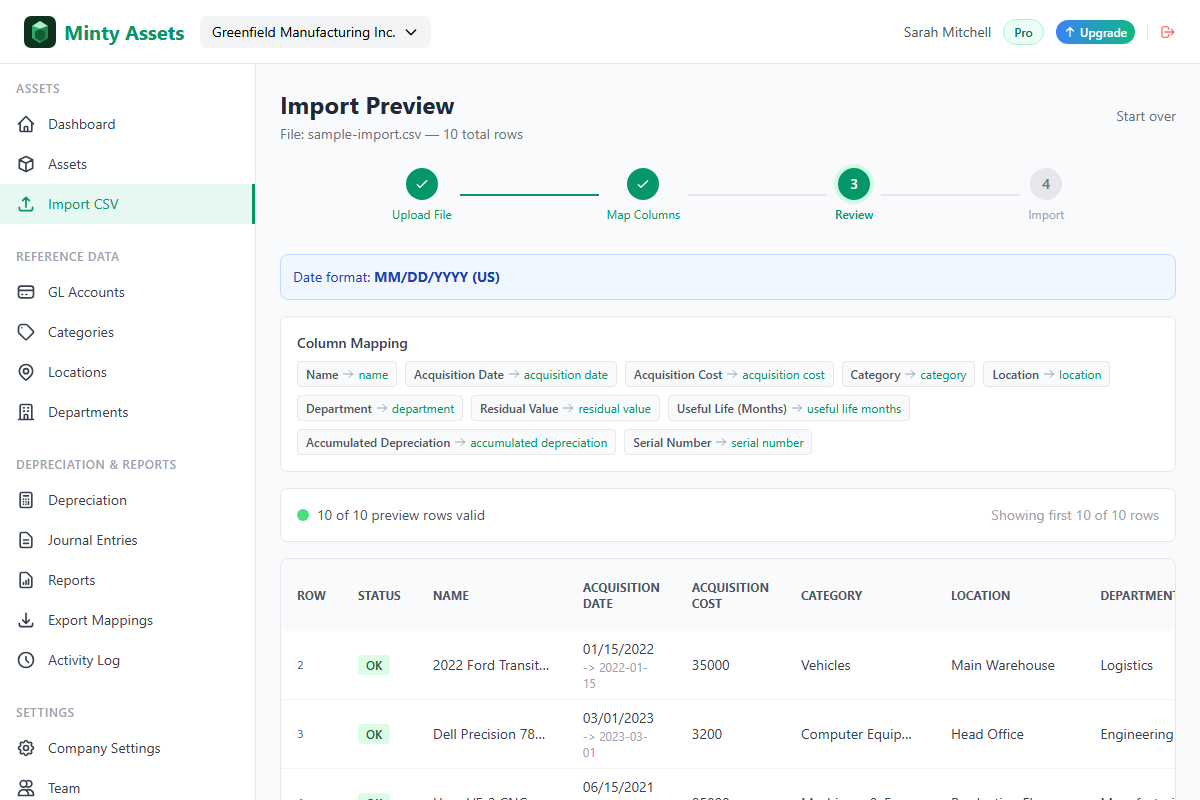
Each row gets a status:
- OK - all fields valid, ready to import
- Warning - something non-critical needs attention (e.g., a category that doesn't exist yet and will be auto-created)
- Error - a required field is missing or a value is invalid (e.g., a date that can't be parsed)
Common validation issues:
| Issue | Cause | Fix |
|---|---|---|
| Date parse error | Ambiguous format (is 01/02/2024 Jan 2 or Feb 1?) | Confirm date format in the detection step |
| Missing cost | Blank cell in the cost column | Fill in the missing value in your CSV |
| Negative cost | Adjustment entries mixed with asset data | Remove adjustment rows; handle those as journal entries instead |
| Duplicate detected | Asset with same name and acquisition date already exists | Choose to skip duplicates on import |
Errors must be fixed before import. Warnings are informational - the import proceeds with them. For example, if your CSV references a category called "Lab Equipment" that doesn't exist in the register, the import auto-creates it with default settings. You can adjust the category's useful life and GL accounts afterward.
If any rows fail validation, you can download an error report CSV that lists each failed row with its specific error. Fix the issues in your source file and re-upload.
After Import: Verify Your Numbers
A successful import message doesn't mean you're done. Spend 15 minutes verifying:
Quick reconciliation checklist:
- Asset count - does the total number of imported assets match your spreadsheet row count?
- Total acquisition cost - compare the register's total cost to your spreadsheet's SUM of the cost column
- Total accumulated depreciation - same comparison for accumulated depreciation
- Total net book value - the register's total NBV should equal total cost minus total accumulated depreciation
- Spot-check 5 assets - pick your 5 highest-value assets and verify each one's NBV individually
If the totals match, you're in good shape. If they don't, the discrepancy is almost always one of: a row that was skipped due to validation errors, a duplicate that was excluded, or a rounding difference in accumulated depreciation values.
Run your first depreciation preview after import. Select the current month and preview the batch. Check that:
- Every imported asset appears in the preview
- Monthly depreciation amounts look reasonable
- Assets that should be fully depreciated show zero depreciation
Don't post this first batch until you've confirmed the numbers. The preview is non-destructive - it calculates without committing anything.
Frequently Asked Questions
How long does it take to migrate from Excel?
A typical migration takes under 30 minutes. The cleanup and data preparation takes 20-25 minutes; the actual CSV import, column mapping, and verification takes about 5 minutes.
What happens to accumulated depreciation during migration?
If you include an accumulated depreciation column in your CSV, the system creates a migration entry preserving the correct net book value. Without it, assets are treated as brand new and start depreciating from zero.
What columns are required for CSV import?
Three columns are required: asset name, acquisition date, and acquisition cost. Additional columns like category, useful life, depreciation method, and accumulated depreciation are strongly recommended.
Can I import partially depreciated assets?
Yes. Include an accumulated depreciation column in your CSV. The system calculates NBV as cost minus accumulated depreciation and continues depreciation from that point forward.
Ready to automate your asset register?
Minty Assets handles depreciation, journal entries, and audit-ready reports. Free for up to 50 assets, no credit card required.
Start Free