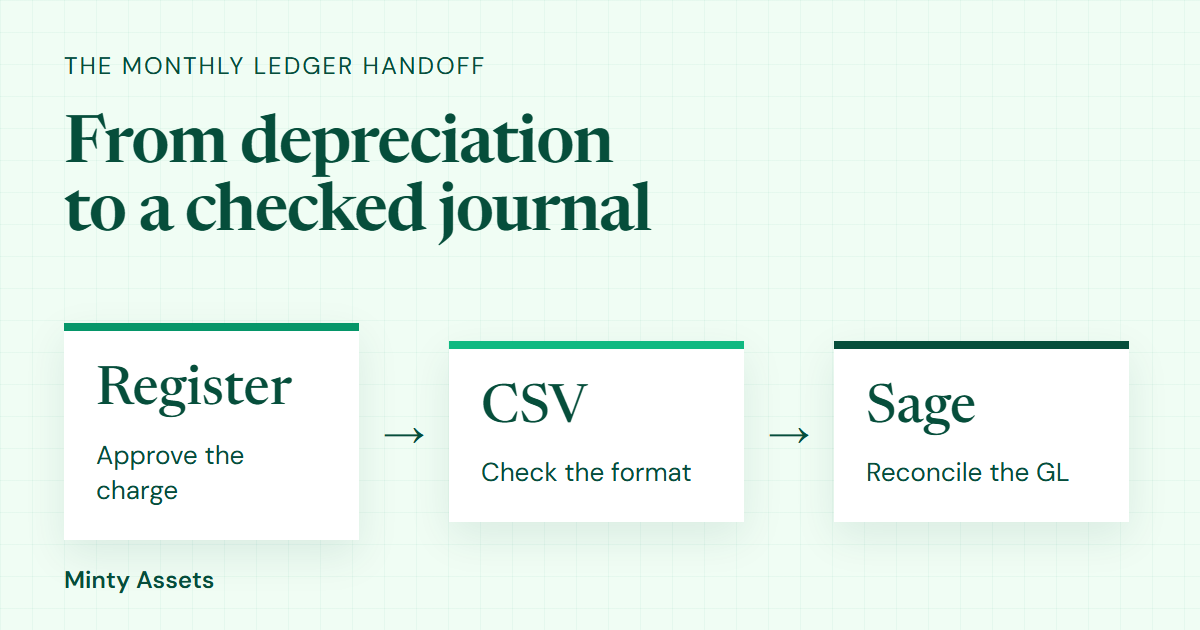
How to Export Depreciation to Sage

Download the depreciation journal, open Sage's import window, and pause before uploading. Does that window expect separate Debit and Credit columns, or a transaction type and one amount? Getting this distinction right is the first control when you export depreciation to Sage. A balanced file can still be the wrong file for the destination.
This guide follows the handoff from a fixed asset register to the general ledger. It covers Minty Assets' CSV export, with destination examples for UK Sage 50 Accounts and UK Sage Accounting. Other Sage products and regional editions need their own templates. The worked figures below are illustrative book depreciation in GBP, without foreign currency or VAT adjustments.
1. Choose the format before you export depreciation to Sage
Record the product, country edition, company, base currency, and accounting period before preparing anything. Download the destination's current journal template or inspect its import field mapping. The word "Sage" on an export preset is not evidence that every Sage importer accepts the same columns.
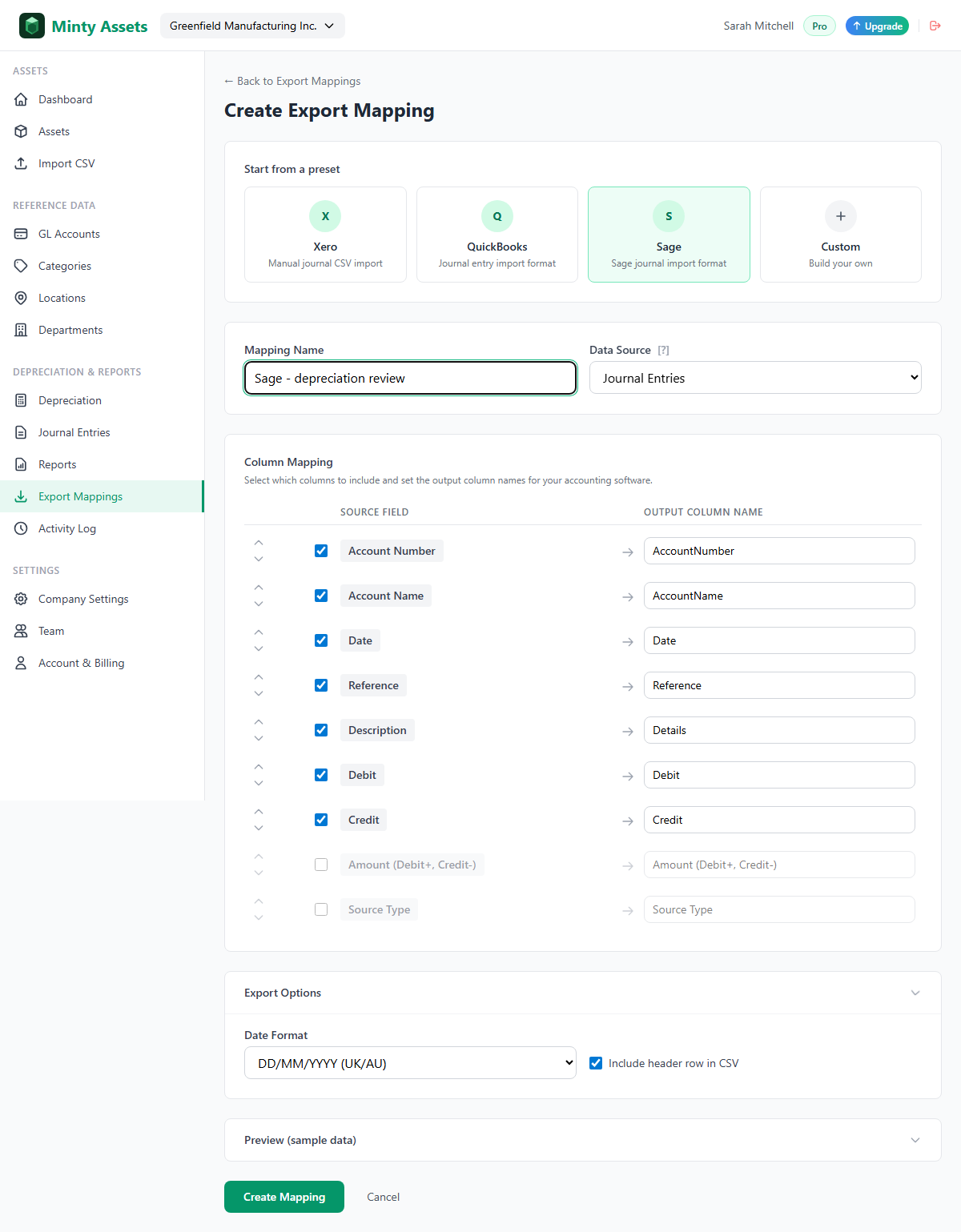
Minty's Sage Journal Export preset supplies AccountNumber, AccountName, Date, Reference, Details, Debit, and Credit, with dates in DD/MM/YYYY format. It is a starting file for review and adaptation. It does not create a Sage connection, upload transactions, or confirm that Sage has accepted them.
For UK Sage 50 Accounts, use its audit-trail journal structure. UK Sage Accounting has a separate journal CSV template. Keep these routes distinct; neither should be substituted for a trial-balance import. A trial balance describes balances, while a depreciation journal records the period's movement.
2. Approve the charge and map the accounts
Approve the depreciation batch and confirm its expense and accumulated depreciation accounts before exporting journal lines.
Depreciation expense is the period's charge for allocating an asset's depreciable amount. Accumulated depreciation is the cumulative depreciation recognized against that asset. For this example, assume the whole charge is expensed: debit the expense account and credit the accumulated depreciation account. The fixed asset journal entries guide explains the underlying postings.
In Minty, check each category's GL accounts against the destination chart of accounts. Match the exact codes and their purpose, not just similar account names. A motor vehicle balance must not land in accumulated depreciation for computer equipment because someone copied the wrong mapping. Preserve leading zeros where the destination uses them.
Agree the period and review acquisitions, disposals, useful lives, and residual values that affect the charge. Resolve unexplained movements before posting the batch. If another system already generates depreciation for the same assets, establish which calculation owns the GL posting so that both systems do not book it.
In Depreciation, select the year and month, choose Preview, review the charge, then select Post Depreciation to create the journal entries. A preview alone creates no exportable journals. If the batch is already posted, use its existing entries rather than posting it again.
Use a reference that identifies the entity, period, and source batch. For example, DEP-2026-09 can identify a September journal within a single company's records; retain the Minty batch identifier in the supporting file. A control total is an independently checked amount used to confirm that the transferred data remains complete and accurate.
3. Create the mapping and download the journal
Create a Sage export mapping, then download the Journal Entries data with the intended date range and source filter.
Open Export Mappings, create a mapping, and select the Sage preset. Check that the data source is Journal Entries, retain the required columns, and verify the date format and CSV header option. Save it under a recognizable name, such as "Sage - depreciation review."
The screenshot below shows the actual Minty mapping builder after selecting Sage. Its preview uses built-in sample data, including February 2026 amounts; it is not the September GBP journal used later in this guide. Sample rows demonstrate the layout and must never be treated as the approved export.
Open Journal Entries and set the start and end dates for the period. Select Depreciation as the source, apply the filters, then choose the saved mapping from the Export CSV menu. These filters control the downloaded population. A depreciation schedule lists asset calculations; the journal export carries the debit and credit lines for the ledger.
(Minty Assets saves reusable column mappings and applies Journal Entries filters to the mapped CSV download.)
Save the original download before editing it. Check actual references and account totals rather than relying on the number of journals visible on one screen. If corrections created depreciation reversals, examine those separately and decide which original and reversing entries the destination still needs. Filtering only ordinary depreciation does not settle that question.
4. Check a balanced monthly example
Validate debit and credit totals, account allocation, and dates using the approved batch before converting the file.
Assume September depreciation is £800 for machinery and £450 for vehicles. The total charge is £1,250. The account codes below are examples, not Sage defaults; replace them with accounts that already exist in your company. Each row belongs to reference DEP-2026-09 and has journal date 01/09/2026.
Minty's ordinary depreciation journals use the first day of the selected month as their entry date. Check that exported date against the destination period and your posting policy. The GBP amounts here are illustrative, separate from the demo company in the screenshot.
| Example account | Debit | Credit |
|---|---|---|
| 7100 - Machinery depreciation expense | 800.00 | 0.00 |
| 0051 - Machinery accumulated depreciation | 0.00 | 800.00 |
| 7200 - Vehicle depreciation expense | 450.00 | 0.00 |
| 0052 - Vehicle accumulated depreciation | 0.00 | 450.00 |
| Total | 1,250.00 | 1,250.00 |
The journal balances, and each category's expense has a corresponding credit. Check both conditions. A file with one machinery debit and one vehicle credit could balance numerically while misclassifying the asset balances. Compare totals by account with the approved supporting schedule.

Keep currency symbols and thousands separators out of import amount fields unless the destination explicitly permits them. The displayed £1,250 total becomes 1250.00 in a numeric CSV field. Confirm that a spreadsheet has not changed 0051 to 51, interpreted dates using another locale, or left formulas instead of exported values.
5. Adapt the CSV for your Sage product
Adapt Minty's exported columns to the destination's template; UK Sage 50 Accounts and UK Sage Accounting require different layouts.
For UK Sage 50 Accounts, use JD for a debit row and JC for a credit row. Put the nonzero debit or credit in its Net Amount field, carry the account code into Nominal A/C Ref, and leave Account reference blank for journals. Use the same journal date across its lines. Sage's journal import instructions describe this route and the template supplied with the installed application.
| Minty value | UK Sage 50 adaptation |
|---|---|
| Debit 800.00, Credit 0.00 | Type JD; Net Amount 800.00 |
| Debit 0.00, Credit 800.00 | Type JC; Net Amount 800.00 |
| AccountNumber 0051 | Nominal A/C Ref 0051 |
| Date 01/09/2026 | Date 01/09/2026 |
Check the tax code with the company's accountant; Sage's journal guide describes T9 as the normal choice and 0.00 tax amount. Its audit-trail field specification confirms DD/MM/YYYY dates and existing nominal codes, and documents reference and details limits. Keep this guide's example base-currency only.
Minty's column builder can rename and reorder existing fields, but it does not derive JD/JC values or insert a constant tax code. Prepare those additional fields in the Sage template, using a controlled spreadsheet transformation. Remove zero-value detail rows that serve only as asset annotations after confirming they carry no posting amounts. Preserve every financial line.
For UK Sage Accounting, get the template from Adjustments > Journals > New Journal > Import Journals. Map AccountNumber to Nominal Code and retain separate Debit and Credit values. Use the template's complete headings, including its description, details, and tax-return fields. Its official CSV guide explains grouping lines under a reference, with journal-level fields populated at the start of the group. Follow that pattern rather than uploading the raw repeated-field export unchanged.
Set Include on VAT/Tax Return? to No for this book-depreciation example. Selecting that option can affect the VAT return even without a VAT amount. Sage's journal VAT guidance explains the setting.
Keep the adapted file beside the original and rerun the totals. A renamed column should not change money. A conversion should explain every removed annotation and retain the same account movements.
6. Import, reconcile, and record completion
Import the reviewed file once, then reconcile the resulting ledger movements before marking the handoff complete.
For Sage 50 Accounts, follow File > Import > Audit Trail Transactions and its backup prompt. Coordinate the import while other users are out of the company. For Sage Accounting, use the journal import window identified above. Test your first conversion in a suitable test company or with the responsible Sage administrator before using it for a routine close.
Review the destination's result messages and inspect the created transactions. If an import fails or returns an unclear result, establish what was posted before retrying. Keep an import log, a record linking each source batch to the destination posting result. A file on disk proves preparation, not acceptance.
For the worked example, verify £800 and £450 in the two expense accounts and matching credits in the accumulated depreciation accounts. Both journal totals should be £1,250. Check the reporting period, reference, and company as well. Then reconcile the register's accumulated depreciation with the GL, allowing for documented opening balances and other movements.
A useful close control is to record the destination transaction identifiers immediately after import. The next preparer can then distinguish a file awaiting posting from a file already accepted. Do not use a filename containing "final" as the posting record. Re-uploading a balanced journal can double the charge while leaving debits equal to credits.
Archive the approved batch support, original download, converted CSV, reviewer sign-off, import results, and reconciliation together. If a later correction is needed, retain the original history and use an approved adjustment or reversal workflow. The year-end fixed asset audit checklist explains how this evidence supports the wider asset reconciliation.
Frequently Asked Questions
Can I import Minty’s Sage preset directly into UK Sage 50 Accounts?
The raw preset needs adaptation. UK Sage 50 Accounts journals use JD or JC transaction types and one amount field, while Minty exports separate Debit and Credit columns. Use the destination template and verify the conversion before importing.
How do I prepare a depreciation journal for UK Sage Accounting?
Download the current journal CSV template from Sage Accounting. Adapt the exported account codes, dates, reference, details, debits, and credits to its headings and journal grouping instructions, then check that each journal balances.
Does downloading a Sage CSV post depreciation to Sage?
No. A Minty CSV download prepares journal data for review. Import it through the appropriate Sage product and verify the resulting transactions before recording completion.
How can I avoid posting depreciation twice?
Keep an import log linking each source batch to the destination transaction identifiers. Check the existing Sage postings before retrying an uncertain import, and ensure that only one system posts depreciation for the same assets and period.
Ready to automate your asset register?
Minty Assets handles depreciation, journal entries, and audit-ready reports. Free for up to 50 assets, no credit card required.
Start Free